Help & Guide
Everything you need to get started with Muse.
Guide
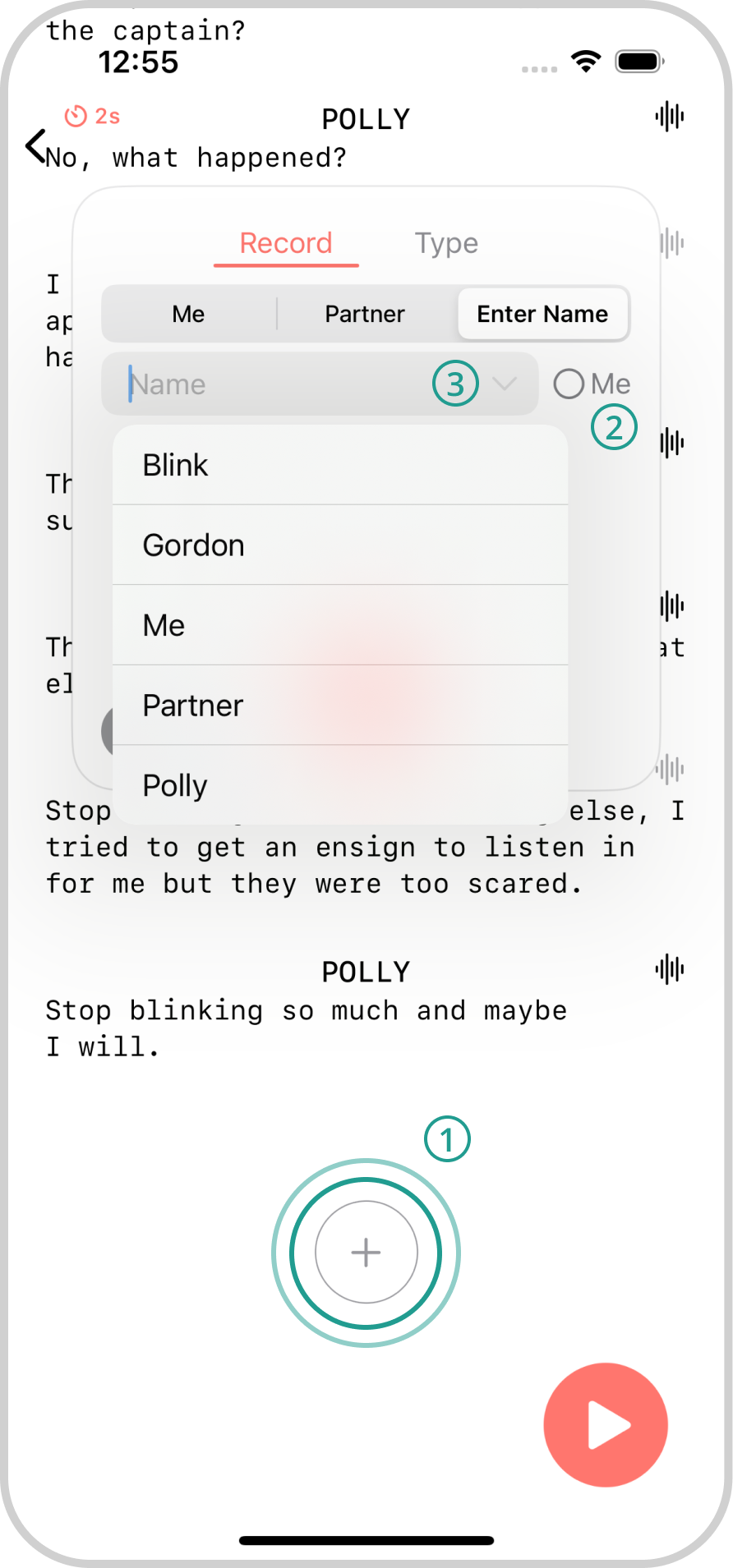
- Add a new line
- Indicate if this line is your line or not
- Tap to show a drop down of names already added to this scene
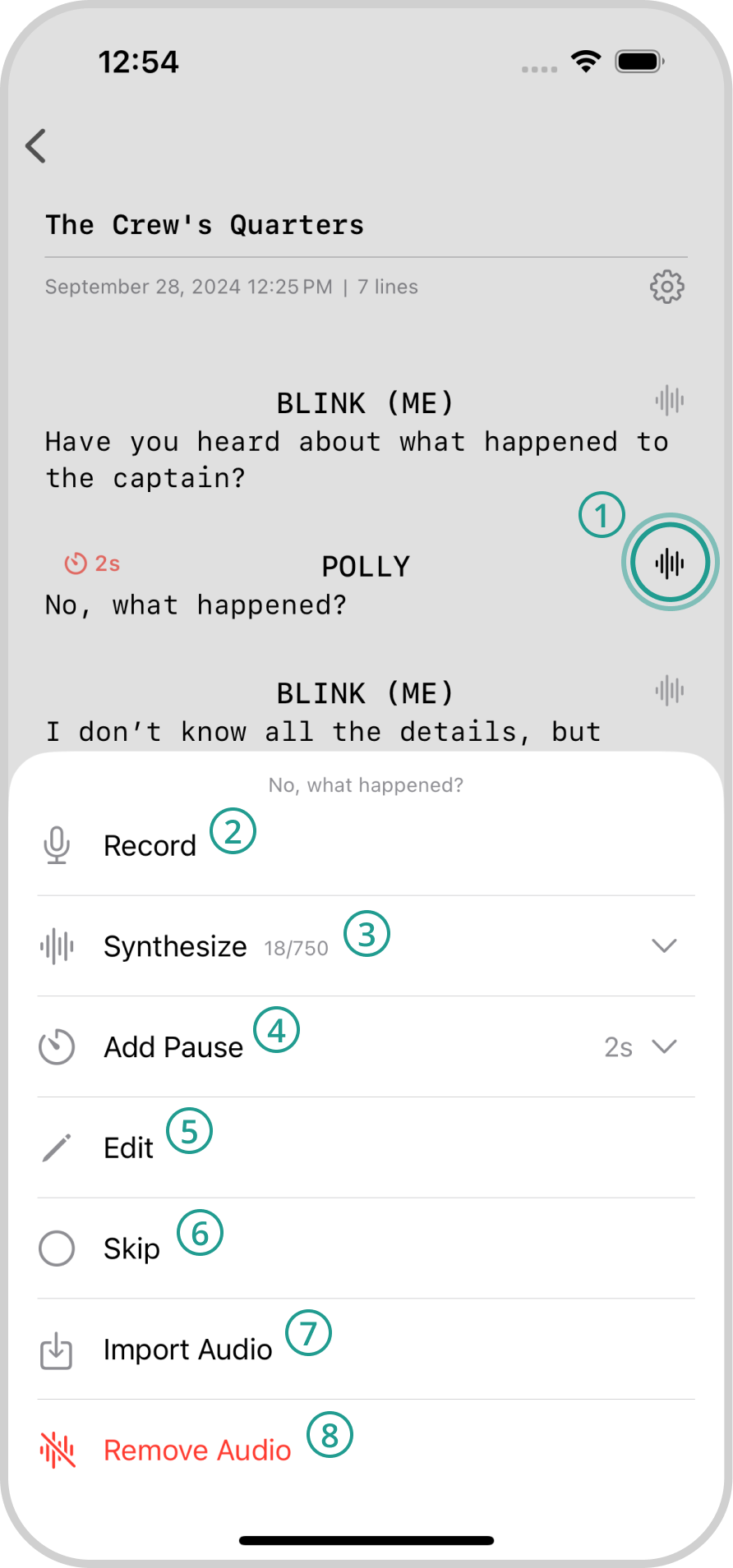
- Line settings
- Add a recording to the line, with an option to replace the existing text
- Select a voice for text-to-speech. Sample voices can be found here
- Select how long the player should wait before continuing to the next line
- Edit the text and name for the line
- Skip over the line when practicing
- Import audio from outside Muse. Supported formats: .mp3, .m4a, .wav
- Remove audio from the line
*Line recordings are deleted when a line is synthesized. Text-to-Speech requires an internet connection.
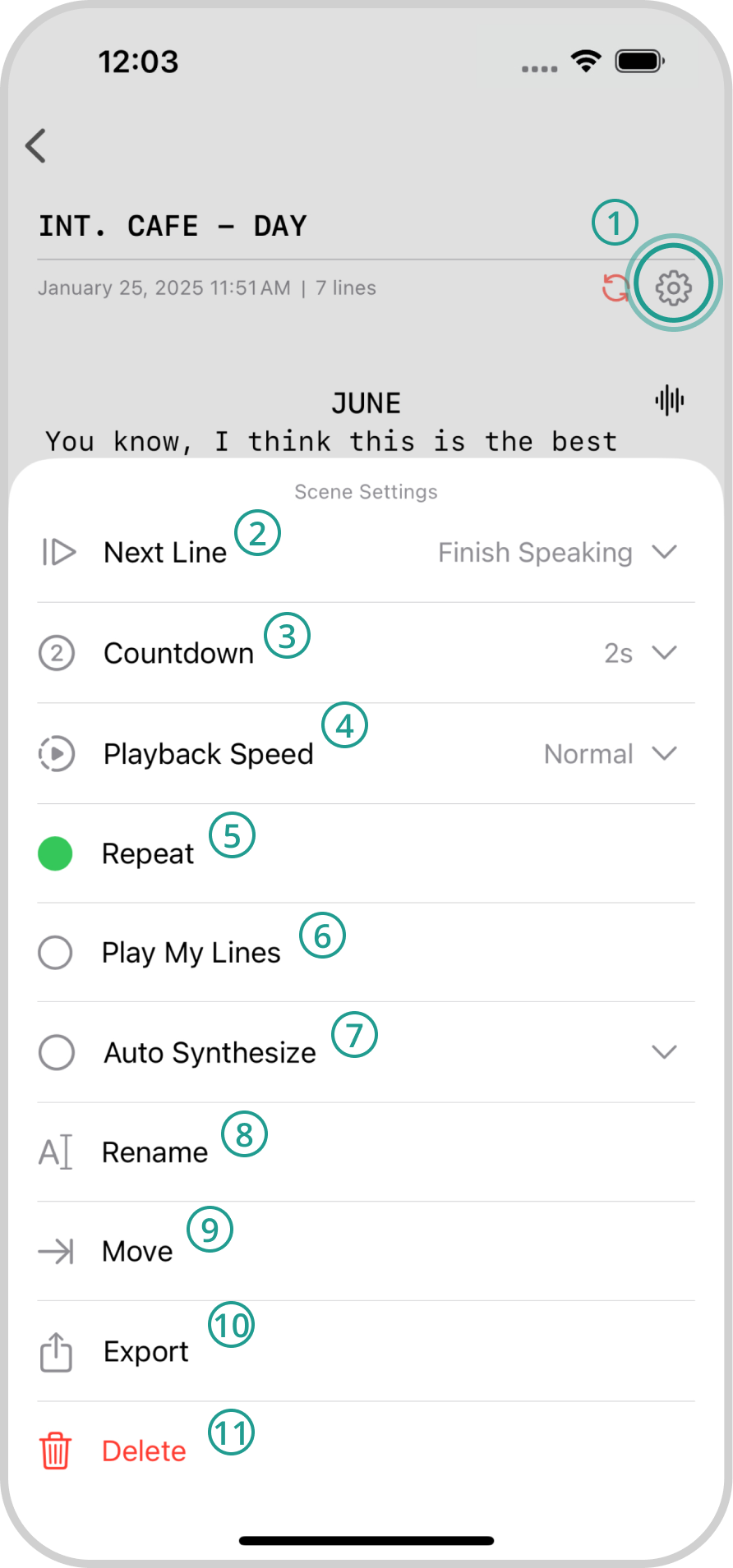
- Scene settings
- Select how to proceed to the next line:
- Finish Speaking: countdown that resets when a word is spoken
- Last Word: moves on only when the last word is spoken
- Tap Screen: tapping the screen moves to the next line (always enabled)
- Available when Finish Speaking is selected — choose how long to wait
- Select playback speed (0.5×, 0.75×, Normal, 1.25×, 1.5×, 1.75×, 2×)
- Loop back to the first line when the session is completed
- Play "ME" lines without microphone feedback
- Auto-synthesize TTS for lines not marked as "ME" while typing
- Change the scene name
- Move this scene to another script
- Export the scene as a .zip for import into another Muse app
- Delete the scene
*Text-to-Speech synthesis requires an internet connection.
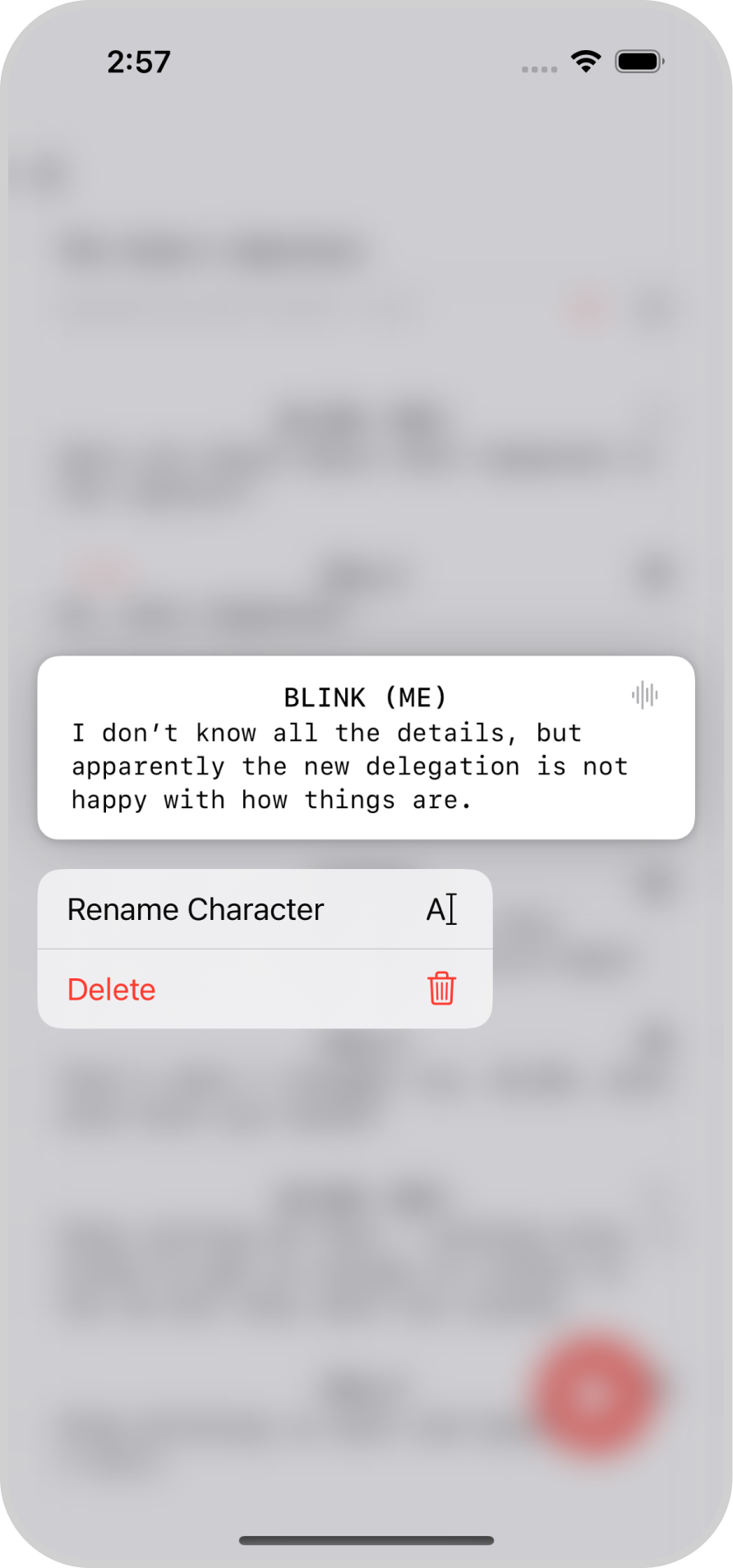
Long press on a line to drag and drop, rename every line with this character, or delete the line.
FAQ
What is Muse?
Muse is a purpose-built app created specifically to help actors memorize and learn their lines efficiently. With a user-friendly interface, the app allows you to easily input your lines as well as your partner's. It intelligently waits for you to finish speaking before moving on to the next line, providing a seamless rehearsal experience.
Can I import my scripts?
Muse does not currently support script imports.
What is Text-to-Speech synthesis and how does it work?
Text-to-Speech (TTS) synthesis uses AI to convert written text into lifelike speech, mimicking the natural cadence and tone of human voices. It's an ideal tool for actors seeking a virtual scene partner, allowing them to simulate various voices based on gender, tone, or emotion. Listen to a few samples here to see how the voices sound.
*Text-to-Speech synthesis requires an internet connection.
Is the information I synthesize safe?
Yes, the information you synthesize using Muse is handled with care and kept confidential.
Are the recordings I make safe?
Yes, all recordings made within Muse are stored locally on your device and can be accessed in the Files app. This means that your recordings are not transmitted to external servers or cloud storage. You have full control over your recordings and their storage.
My friend sent me audio or a Muse Scene file. How do I import it?
If you are using an iOS device and receive a file you'd like to import, simply download the file to the Files app and navigate to the location you saved it to when prompted within Muse.
Do you offer student discounts?
Yes! We offer discounts for students of all kinds; whether you're studying at a traditional school or university, enrolled in a theater or acting program, taking improv classes, or anywhere in between. If you're a student working on your craft, we'd love to support you.
Just reach out to us at contact@bendplatforms.com with proof of enrollment and we'll get you set up.